AAA Display options

The new force combining Age Concern logo & Help the Aged logo

Computers and technology


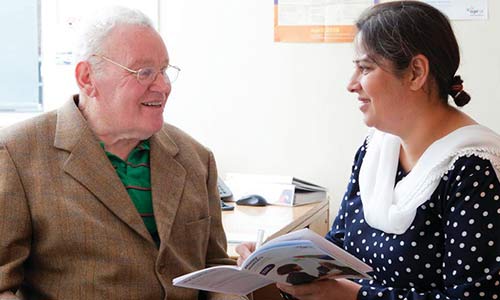
Person using a remote control
Technology and digital inclusion is about ensuring that people living in later life can make the best use of today’s modern technology to increase their quality of life and experience the socially inclusive benefits it offers.

What we do

Age UK delivers a number of UK-wide digital inclusion programmes and campaigns working with many local and national partners. We support those in later life to
benefit from internet access and technologies at all stages of engagement through taster sessions, on-going courses and outreach programmes.

Age UK works in partnership with 200+ organisations which form our Digital Inclusion Network and delivers Connect with IT, our comprehensive digital inclusion campaign which includes itea and biscuits week, myfriends online week, an annual Age UK Internet Champion of the Year competition, IT Volunteering and computer recycling. In addition we run initiatives in care homes and sheltered housing.

We support activities through expert information, best practice materials, support and training, grants and consumer materials.

More than 200,000 people in later life are helped each year. Find out more about what we do:

Recent publications and reports

Here are a selection of recent and important documents. For related Age UK publications please use the search box below to carry out a more comprehensive search.

Keep up-to-date

Stay in touch with all the latest Policy and Research news with our monthly newsletter

Useful download

  • Download our Services for Later Life 2012 programme and booking form:
    opens link in new window Services for Later Life conference and booking form PDF (314 KB)
    Help with downloads

    Downloads

    What is a download?

    A download is a document (like a research report, a leaflet, or an application form) that can be transferred from our website to your computer. You can download a file, view it on your screen, print it, or save it to your computer.

    What is a PDF?

    PDF stands for ‘portable document format’.

    Most downloads on this website are PDFs. We use this format to ensure that the document looks the same on everyone’s computer (website pages, by contrast, appear differently depending on how people have set their computer up).

    How do I download a PDF?

    Computers use a program called Adobe Acrobat Reader to download PDFs. If you try clicking on a link to download a PDF and it doesn’t work, you will need to install Adobe Acrobat Reader onto your computer.

    How do I install Adobe Acrobat Reader?

    The process is quite straightforward and is free.

    1. Go to opens link in new window http://get.adobe.com/uk/reader/
    2. Click ‘Download’.
    3. Wait for the window to offer you the option to ‘Run’, then choose this option.
    4. Click ‘Next’.
    5. Click ‘Install’
    6. Wait for the window to offer you the option to ‘Finish’, then choose this option.

    How do I change a download?

    PDFs cannot be changed. If you need to be able to type into a downloaded document (for example, if we are offering a letter template that you need to put your name on) we will provide it as a Microsoft Word document rather than a PDF. You can then download it, type into it and save it to your computer.

    How do I print or save a download?

    Downloads will open on your computer in a new browser window.

    Inside this window (below all your web browser menus), there will be a toolbar with options for you to print or save the document.

    Close the browser window to return to the Age UK website.

    Can my screen reader read PDF downloads?

    We have made every effort to make our PDFs accessible to screen readers. Here is an overview of your accessibility options available in Acrobat Reader. Please ensure that you have downloaded the latest version of Acrobat Reader from the Adobe Reader website to ensure that they are included in your version of the programme.

    You can use Adobe Reader to read a PDF out loud with the following shortcut keys:

    • Read the document: Shift +Ctrl+Y
    • Read the open page only: Shift +Ctrl+V
    • Read to the end of the document: Shift+Ctrl+B
    • Pause: Shift+Ctrl+C
    • Stop Shift+Ctrl+E

    You can also convert a PDF into a web page by following these steps:

    • Copy the URL (web address) of the document (right-click on the link and select ‘Save target as’ or ‘Copy link’).
    • Open the Adobe online conversion tool in your browser and paste the URL into the URL box.
    • Tick the HTML box on the Format option and click ‘Convert’.

    You can convert a PDF document into a text file for use with other software and hardware such as Braille printers by opening the PDF and choosing ‘Save as text’ from the File menu.

Find local services near you

Close window
Display options

Set the appearance of this website so you can read it more easily

Text size

Background/foreground


To see information relating to Northern Ireland, Scotland or Wales set your preference below: